
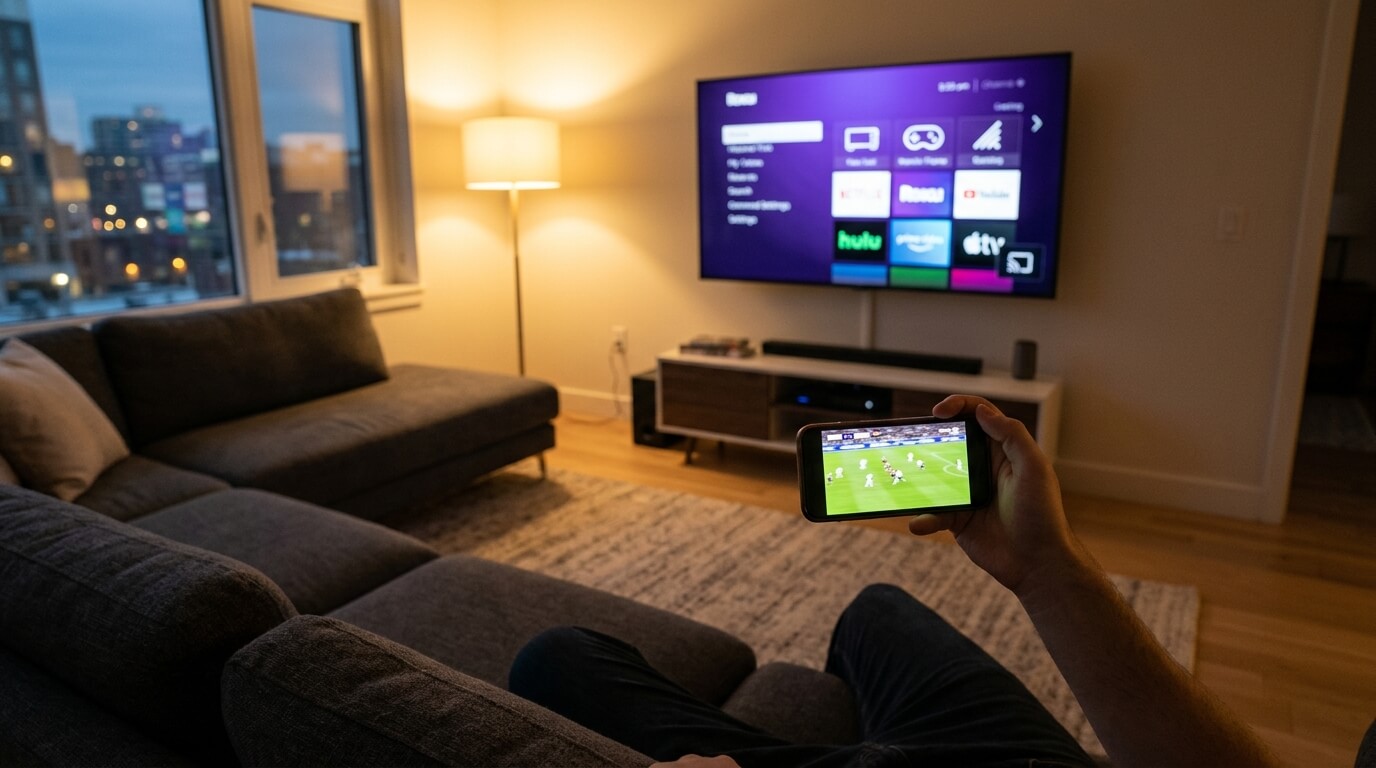
IPTV on Roku works a little differently than on other devices, and that trips a lot of people up. Unlike a Firestick or an Android box, Roku keeps its channel store closed, so you can’t just search for an IPTV app and install it. The good news: there are two proven ways around it. In this guide you’ll learn how to watch IPTV on Roku using the easy method (screen mirroring) and the advanced one (developer mode), plus the requirements and quick fixes to keep everything running smoothly.
Table of Contents
Why Roku Is Different From Other Devices
Most streaming devices let you sideload or install IPTV players directly. Roku doesn’t. Its operating system is locked down and its channel store doesn’t approve third-party IPTV apps, so the usual “download the app and log in” route won’t work here. That doesn’t mean you can’t watch IPTV on Roku — it just means you use your phone or computer as the source and send the picture to the Roku screen. Once you understand that, the rest is simple.
Method 1: Screen Mirroring (The Easy Way)
Screen mirroring is the fastest way to get IPTV on Roku. You run the IPTV app on your phone and mirror it to your TV — no technical setup, no risk. This is the method we recommend for most people.
Install the IPTV app on your phone
Set up 8Kontv on your Android or iPhone — this becomes your streaming source.
Turn on Screen Mirroring on Roku
Go to Settings → System → Screen mirroring and set it to “Always allow” or “Prompt”.
Cast your phone to the Roku
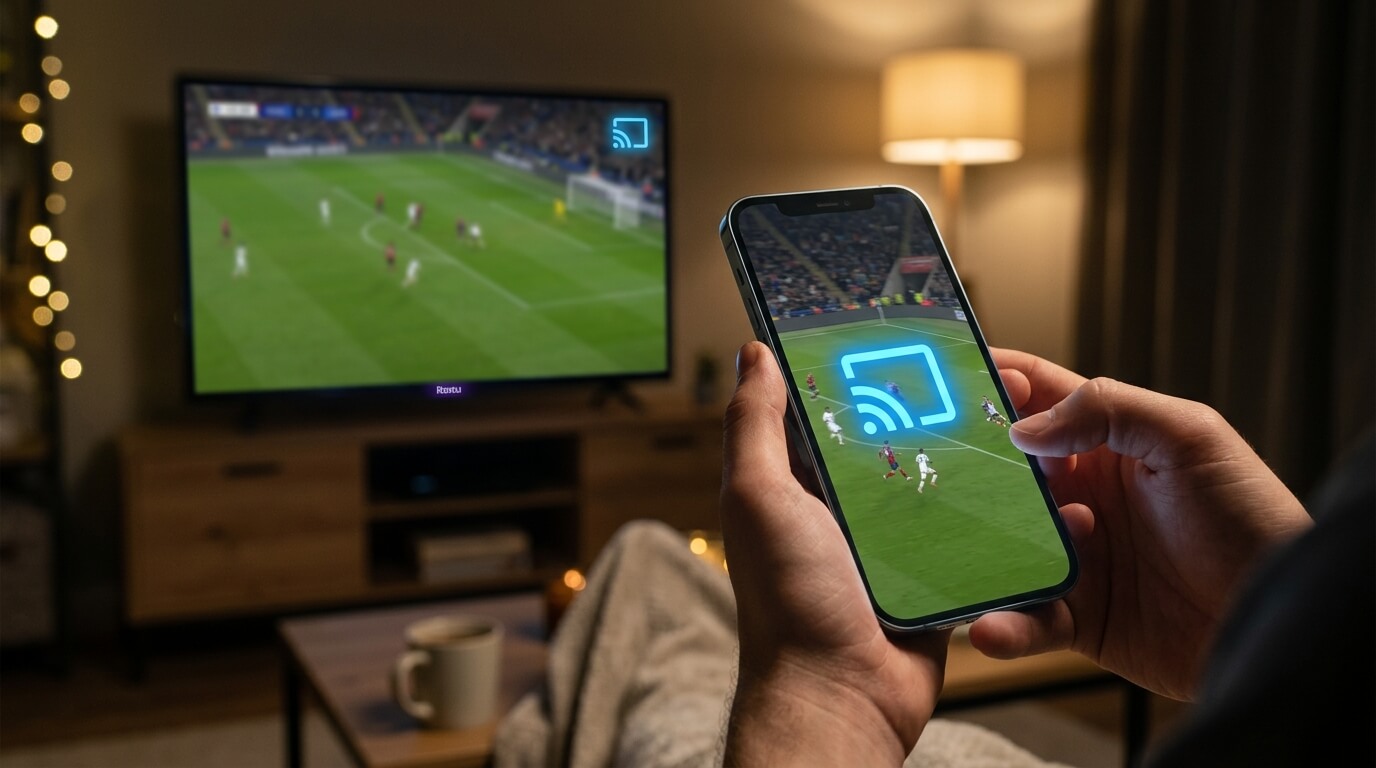
On Android tap “Smart View / Cast”; on iPhone use “Screen Mirroring”. Pick your Roku, open the app, and it appears on your TV.
If your phone doesn’t appear when you try to cast, it’s almost always because your phone and your Roku aren’t on the same WiFi network — fix that first. For the full walkthrough with screenshots, follow our dedicated 8Kontv Roku guide. You can also review Roku’s own screen mirroring support page if you want the manufacturer’s steps.
Tip: Connect your phone and your Roku to the same WiFi network. That’s the #1 reason a device doesn’t show up in the casting list.
Method 2: Developer Mode (Advanced)
If you’d rather have the app running directly on the Roku itself — without keeping your phone on — you can enable developer mode and install a private channel. It’s more technical and meant for users who already know their way around Roku, but it gives you a native experience. Enabling developer mode and uploading the channel file only takes a few minutes once you have the credentials, which our support team sends you over WhatsApp.
Which Method Should You Choose?
Not sure which route fits you? Here’s the quick answer.
Screen Mirroring
- Ready in 2 minutes
- No technical skills
- Phone must stay on
Developer Mode
- Runs on the Roku itself
- Phone not needed
- More technical setup
Got your Roku ready?
Pick a plan and start streaming on your Roku today.
What You Need Before You Start
Before setting up IPTV on Roku, make sure you have: a Roku device connected to the internet, a phone or computer to mirror from or run developer mode, a stable connection (15 Mbps for HD, 25 Mbps for 4K), and an active IPTV subscription. If you haven’t installed the app on your phone yet, grab it from our download page — it lists every supported player.
Common Roku IPTV Problems (and Quick Fixes)
Most issues have simple causes:
- Your phone won’t cast — phone and Roku must be on the same WiFi network.
- The picture stutters — check your internet speed; 4K needs at least 25 Mbps.
- Mirroring keeps dropping — disable battery saver on your phone, it kills the cast in the background.
- No sound on the TV — raise the volume on the phone, not just the Roku remote.
If none of that works, our team helps you directly — that’s the difference a real provider makes.
Frequently Asked Questions
Can you get IPTV on Roku?
Yes. Roku doesn’t allow IPTV apps in its store, but you can watch IPTV on Roku through screen mirroring from your phone or by enabling developer mode.
Is there an IPTV Roku app?
There’s no official IPTV app in the Roku store. The reliable way is to mirror the app from your phone or install a private channel via developer mode.
Does screen mirroring on Roku affect quality?
No. As long as your internet is fast enough (25 Mbps for 4K), the stream stays sharp and stable.
Do I need to keep my phone on?
With screen mirroring, yes — your phone is the source. Developer mode runs on the Roku itself, so the phone isn’t needed.
Which Roku models support this?
Screen mirroring works on virtually all modern Roku devices, including Roku Stick, Express, and Roku TVs.
Ready to watch on your Roku?
22,000+ channels and live sports in 4K. Instant activation, real support.