
IPTV buffering is one of the most common streaming problems, but in most cases it can be fixed quickly. WiFi interference, DNS settings, buffer size, network congestion, or too many connected devices are usually responsible. Here are the fixes we recommend trying first.
Table of Contents
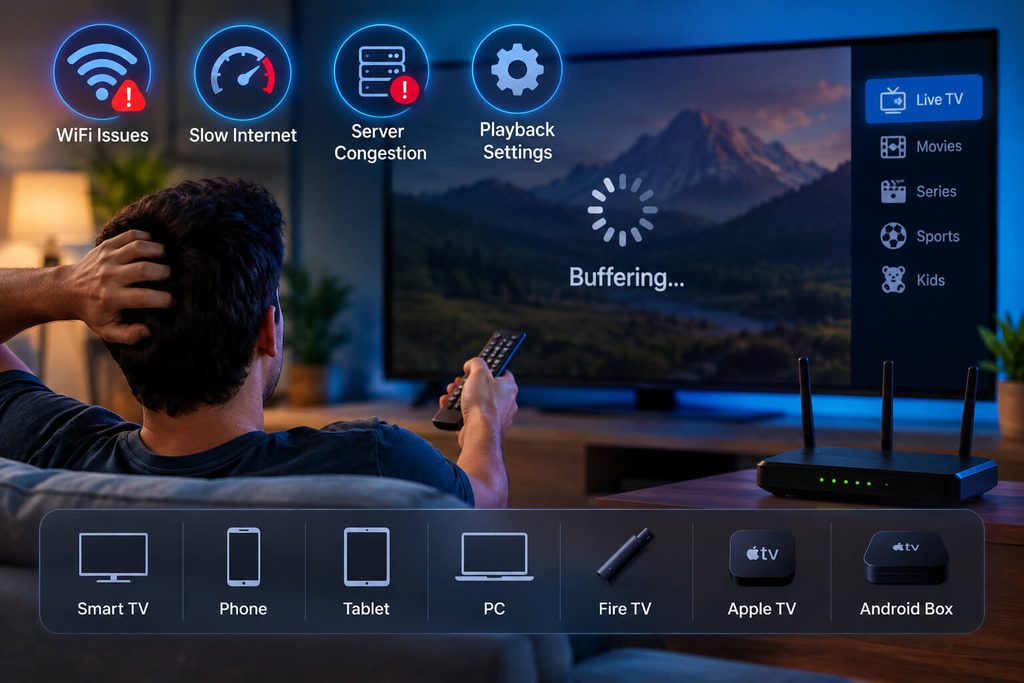
If you’ve ever messaged an IPTV provider’s support line with “it keeps buffering,” you already know the first reply is usually “check your internet.” That answer is annoying, but it’s right more often than people want to admit. Before you touch a single setting, it’s worth understanding what’s actually happening behind that spinning icon.
of buffering cases trace
back to WiFi interference
happen during peak-hour
server congestion
come from a buffer size
that’s set too low
are genuinely just not
enough bandwidth
Notice how small that last number is. Most people assume buffering means their internet plan is too slow, and in our experience that’s the least likely explanation. It’s usually something you can fix in the next ten minutes without calling your ISP.
1. Check Whether Your Connection Is Causing IPTV Buffering
Streaming quality depends on real, stable speed — not the number printed on your internet bill. Run a quick test at speedtest.net on the same device and same network you use for IPTV, right when the buffering happens. These are the numbers that actually matter:
People check their speed once, in the morning, get 80 Mbps, and assume they’re covered all day. Run the test again at 8 or 9 PM — that’s when your neighborhood’s traffic (and your provider’s) peaks, and it’s usually when buffering shows up.
2. Get off WiFi if you possibly can
This is the single biggest fix, and almost nobody tries it first because it feels inconvenient. WiFi shares a fixed amount of airtime with every other device in range — your neighbor’s router, your microwave, your smart bulbs, even a baby monitor can knock a couple of megabits off your signal without you noticing.
A wired Ethernet connection to your Fire TV Stick, Android box, or Smart TV skips all of that entirely. If your device doesn’t have an Ethernet port, a $10–15 USB-to-Ethernet adapter solves it. We’ve seen this one change fix buffering that three other “solutions” didn’t touch.
If Ethernet genuinely isn’t an option, at least move your router closer to the device, switch it to the 5GHz band instead of 2.4GHz, and put the router on a shelf instead of the floor or inside a cabinet.
3. Switch your DNS (takes two minutes)
Your ISP’s default DNS server is sometimes slow or overloaded, especially with smaller regional providers. Switching to a public DNS is free, reversible, and often makes channels load faster with fewer hiccups:
- Google DNS:
8.8.8.8and8.8.4.4 - Cloudflare DNS:
1.1.1.1and1.0.0.1
On most Android boxes and Fire TV devices, this is under Settings → Network → your WiFi/Ethernet connection → IP settings → Static, where you can enter the DNS values above. It sounds technical, but it’s the same four numbers typed twice.
4. IPTV Buffering Fix: Raise the Buffer Size in Your Player
IPTV Smarters Player, TiviMate, and most other apps let you increase how much of the stream gets pre-loaded before it starts playing. A bigger buffer means a slightly longer wait when you first open a channel, but far fewer freezes once it’s running — especially useful if your connection is a little inconsistent rather than just slow.
In TiviMate: Settings → Playback → Buffering. In IPTV Smarters Player: Settings → Playback Buffer Size. Try pushing it up in small steps rather than maxing it out immediately.
5. Count how many devices are streaming
A 4K stream on the living room TV, a phone streaming in the kitchen, someone’s laptop backing up photos to the cloud, and a game console downloading an update — on paper your internet plan can handle it, but not always all at once, on the same router, during dinner.
If buffering only happens in the evening when the whole house is online, that’s your answer. Pausing downloads on other devices while you watch, or upgrading your router if it’s a few years old, usually clears it up.
6. When it’s not on your end
Sometimes it really is the provider’s side — a specific channel’s source can drop during a live sports broadcast when traffic spikes, or a server region gets congested. The way to tell the difference: test two or three unrelated channels. If only one is choppy while everything else plays fine, that’s a source issue, not your network, and it’s worth a quick message to support so it gets flagged.
Still buffering after trying all of this? Our team can check it with you directly. Chat with us on WhatsApp
Quick checklist
Most IPTV buffering problems can be solved without upgrading your internet plan. Start with Ethernet or 5GHz WiFi, test your speed, adjust DNS and buffer settings, and then rule out provider-side issues.
- Ran a speed test on the actual streaming device, at the time it buffers
- Switched from WiFi to Ethernet, or at least to 5GHz and moved closer to the router
- Changed DNS to 8.8.8.8 or 1.1.1.1
- Increased the buffer size in the player’s settings
- Checked what else is using the network at the same time
- Tested a second, unrelated channel to rule out a source-side issue
If your connection is working properly but you’re still dealing with IPTV buffering, it may be worth checking whether your current service is the problem. 8Kontv offers premium IPTV plans with live TV, sports, movies and series, 4K streaming options, EPG and support for multiple devices. Compare our IPTV plans and pricing or visit our IPTV setup guides to make sure your device is configured correctly.
Does a VPN fix buffering?
Usually not, and sometimes it makes things worse by adding an extra hop. A VPN is for privacy and bypassing geo-blocks, not for speed — unless your ISP is specifically throttling streaming traffic, in which case it can occasionally help.
Why does it only buffer during sports events?
Live sports push way more simultaneous viewers onto the same channel source at once than a regular show does. It’s the closest thing to “rush hour” that IPTV has, and it’s the one scenario where a slightly higher buffer setting pays off the most.
Should I restart my router?
It genuinely helps more than people expect, especially if it’s been running for weeks without a reboot. A router that’s been up for a long time can develop small memory or connection-table issues that a simple restart clears out.