
If you’d rather watch your channels from your computer, you can use the desktop version of IPTV Smarters Player, available for both Windows and Mac. It’s the same app you’d use on your phone, with an interface built for a bigger screen.
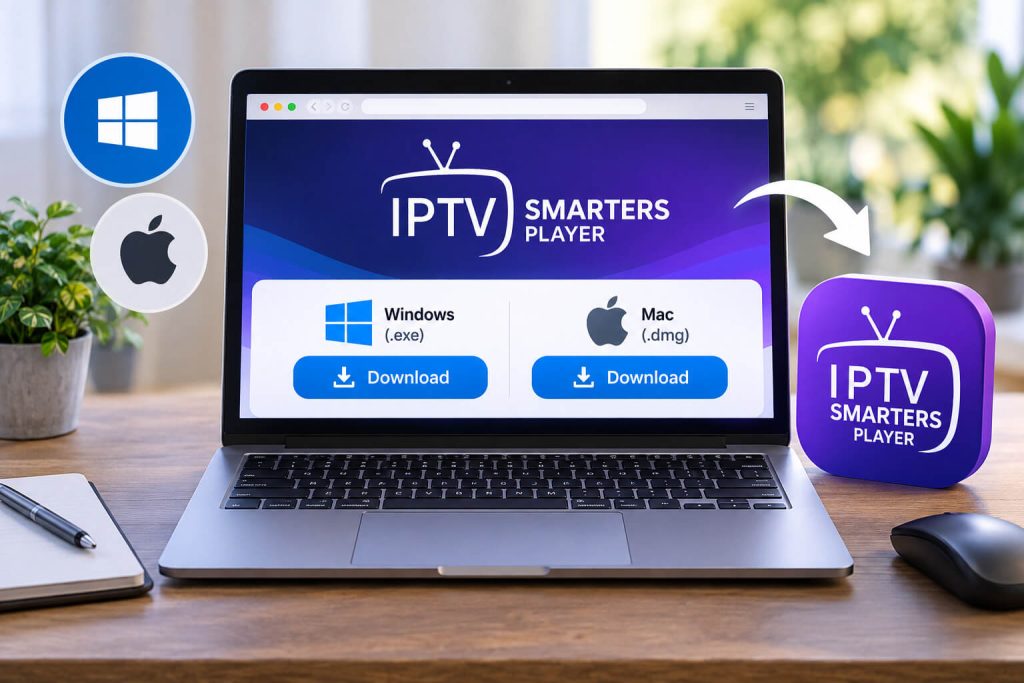
Go to the official IPTV Smarters Player website and download the right version: Windows (.exe) or Mac (.dmg). It's free and doesn't require any prior sign-up.
On Windows, run the installer and follow the setup wizard. On Mac, open the .dmg file and drag the app to your "Applications" folder. If macOS blocks it for coming from an "unidentified developer," go to System Preferences → Security and click "Open Anyway."
Open the app and select "Login with Xtream Codes API." Enter the username, password, and server URL we sent you when you signed up, and wait for your channel list to load.
If you already have VLC installed, you can play your channels without installing anything else. Open VLC, go to Media → Open Network Stream, paste the playlist (M3U) URL we gave you when you signed up, and press “Play.” It’s cleaner than the dedicated app, but doesn’t include a program guide or organized categories.
Tip: for everyday use, IPTV Smarters Player is more convenient thanks to its channel guide; VLC works better as a quick backup.
Check out our plans and pick the one that fits you best.
Our team helps you on WhatsApp within minutes, every day.